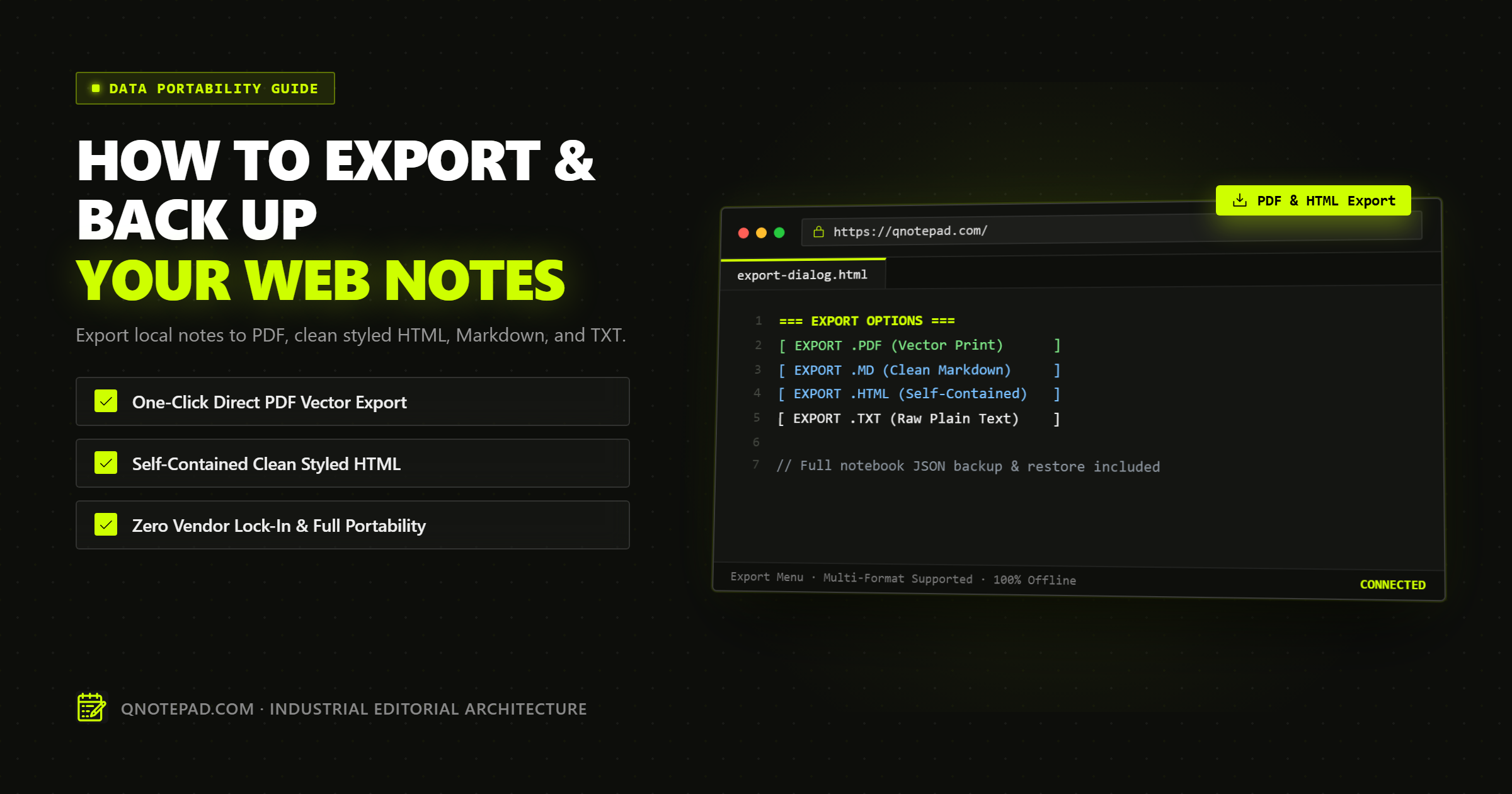
Exporting local web notes into open, portable file formats like Markdown, PDF, standalone HTML, and plain text is the cornerstone of personal data sovereignty.
When you capture thoughts, meeting notes, code snippets, or draft articles in a browser-based notepad, your words should never be locked behind proprietary cloud database schemas or subscription paywalls. A local-first note is only truly yours if you can extract it into an open standard format that will remain readable twenty years from now.
Whether you need to pipe your thoughts into an Obsidian knowledge graph, generate a formal client-ready PDF invoice or specification, archive an offline-accessible HTML document, or perform a complete JSON notebook backup, understanding client-side export mechanics is essential.
This guide explores the strengths and trade-offs of modern note export formats, details client-side file generation techniques using standard browser Web APIs, provides print-to-PDF CSS recipes, and outlines a resilient backup workflow for knowledge workers.
The Data Sovereignty Mandate: Why Export Formats Matter
Over the past two decades, dozens of popular note-taking and productivity applications have been acquired, shut down, or redesigned around incompatible proprietary formats.
When an application stores your writing in a proprietary cloud database:
- You cannot inspect your raw files with standard operating system tools (Terminal, Spotlight, grep, ripgrep).
- You cannot track revisions using version control systems like Git.
- If the company alters its pricing model, introduces mandatory AI telemetry, or discontinues its service, migrating thousands of documents can take weeks of manual scraping.
By contrast, an editor designed around open-standard exportability guarantees longevity:
+------------------------------------------------------------------------+
| The Longevity Spectrum of Digital Note Formats                         |
+------------------------------------------------------------------------+
| Lowest Longevity / High Lock-In: Proprietary Cloud Schemas             |
|   - Notion Blocks, Evernote ENEX, Google Docs Internal JSON            |
|   - Requires specialized converters; prone to schema breakage          |
+------------------------------------------------------------------------+
| Medium Longevity / Fixed Presentation: Formatted Documents             |
|   - PDF / Print Handouts, Microsoft Word (.docx)                       |
|   - Immutable visual layout; difficult to extract semantic raw data    |
+------------------------------------------------------------------------+
| High Longevity / Portable Archiving: Self-Contained Web Documents      |
|   - Standalone HTML5 with embedded CSS typography                      |
|   - Opens in any web browser on any device without internet access     |
+------------------------------------------------------------------------+
| Maximum Longevity / Future-Proof: Open Standard Plain Text             |
|   - CommonMark Markdown (.md) and Universal Plain Text (.txt)          |
|   - Guaranteed human-readable for centuries; infinite interoperability |
+------------------------------------------------------------------------+
The Four Essential Export Formats: Strengths & Use Cases
Choosing the appropriate export format depends on whether your priority is editing continuity, visual immutability, universal sharing, or machine backup:
1. Markdown (.md) - The Sovereign Standard for Writers & Developers
Markdown is plain text structured with lightweight formatting markers (such as # for headers and - for lists).
- Strengths: Lightweight (a 5,000-word article is under 30 KB), fully Git-diffable, readable in raw form inside terminal text editors (Nano, Vim), and immediately compatible with Obsidian, Logseq, VS Code, iA Writer, and static site generators (Next.js, Astro, Hugo).
- Best For: Drafts, technical documentation, personal wikis, and long-term knowledge management.
2. Portable Document Format (.pdf) - The Immutable Handout
PDF is the global standard for fixed-layout document interchange.
- Strengths: Exact typographic reproduction across every operating system, page numbering, printable margins, and tamper-resistant presentation.
- Best For: Client meeting minutes, formal contracts, project proposals, and printed study guides.
3. Standalone HTML (.html) - The Self-Contained Offline Web Page
A standalone HTML export bundles the HTML markup, inline CSS styling, and typography into a single independent .html file.
- Strengths: Interactive links remain clickable, formatting looks identical to the live notepad, and the file opens in any browser on macOS, Windows, Linux, iOS, or Android without needing internet access or third-party viewer software.
- Best For: Digital project handoffs, rich offline archives, and sharing styled notes with non-technical colleagues.
4. Universal Plain Text (.txt) - The Universal Baseline
Plain text strips away all formatting markers, returning raw UTF-8 characters.
- Strengths: Zero parsing complexity, compatible with every computing platform ever engineered, and ideal for piping into command-line tools or pasting into legacy text fields.
- Best For: Raw code snippets, environment variables, temporary scratchpad buffers, and phone call notes.
5. Full JSON Notebook Archive (.json) - Full-Fidelity Database Backup
While Markdown preserves the body text, a multi-note notebook contains metadata: creation timestamps, last modified dates, tags, pinned status, and folder categories.
- Strengths: Allows 100% lossless restoration of your entire workspace into another browser or device.
- Best For: Periodic disaster recovery backups and browser migration.
Comparative Format Matrix
| Format | File Extension | Readability Without Special Software | Preserves Formatting | Vector Printable | Metadata & Timestamps | Git Friendly |
|---|---|---|---|---|---|---|
| Markdown | .md |
Excellent (Plain text) | Yes (Semantic) | Indirectly (Via rendering) | Minimal (Via Frontmatter) | Exceptional |
.pdf |
Requires PDF Reader | Yes (Visual layout) | Exceptional (Vector) | Embedded PDF metadata | Poor (Binary) | |
| Standalone HTML | .html |
Exceptional (Any browser) | Yes (Styled) | Excellent (Via print) | Document headers | Moderate |
| Plain Text | .txt |
Universal (Any system) | No (Unformatted) | Basic monospaced | None | Exceptional |
| Notebook JSON | .json |
Good (Structured text) | Full database state | No | Complete schema | Excellent |
How In-Browser File Generation Works Without a Server
Many web applications send your text back to a backend server (e.g., POST /api/export-pdf) to generate a downloadable file. This introduces severe privacy risks: your unencrypted note content travels over the network and enters server memory or temporary disk logs.
In a modern local-first notepad like QNotepad, all file generation occurs 100% client-side inside the browser sandbox using two fundamental Web APIs:
1. The Blob and URL.createObjectURL() Architecture
User Types Note ---> Blob([content], { type: mimeType })
                          |
                          v
                    URL.createObjectURL(blob) ---> "blob:https://qnotepad.com/9f2a..."
                          |
                          v
               Synthetic <a download="..."> Click
                          |
                          v
               Operating System "Save As" / Download
                          |
                          v
                    URL.revokeObjectURL(url) (Memory Freed)
- Blob Construction: The browser encodes the editor's text string into a binary
Blobwith the appropriate MIME type (e.g.,text/markdown;charset=utf-8). - Object URL Generation: The browser creates a temporary internal reference URI using
URL.createObjectURL(blob). - Synthetic Trigger: JavaScript dynamically creates an anchor element
<a download="note-title.md">, attaches the Object URL, and programmatically triggers its.click()event. - Memory Hygiene: Once the operating system accepts the file, JavaScript immediately calls
URL.revokeObjectURL()to release the memory allocation from browser RAM.
Production Implementation: Client-Side Multi-Format Exporter
Below is a complete, production-grade TypeScript utility that handles client-side exports for Markdown, Plain Text, Standalone HTML, and JSON backups without server dependencies:
/**
* Client-Side Note Exporter
* Generates and triggers instant downloads for .md, .txt, .html, and .json
* entirely inside the browser sandbox with strict memory management.
*/
export interface ExportNotePayload {
title: string;
content: string;
createdAt?: string;
updatedAt?: string;
tags?: string[];
}
export class NoteExportManager {
/**
* Sanitizes note titles to create safe filesystem filenames.
*/
public static sanitizeFilename(title: string, fallback = "untitled-note"): string {
const clean = title
.trim()
.replace(/[\\/:*?"<>|]/g, "") // Remove illegal filesystem characters
.replace(/\s+/g, "-") // Replace spaces with dashes
.toLowerCase();
return clean.length > 0 ? clean.slice(0, 80) : fallback;
}
/**
* Exports the note as a standard CommonMark Markdown file (.md).
*/
public static exportAsMarkdown(note: ExportNotePayload): void {
const filename = `${this.sanitizeFilename(note.title)}.md`;
this.triggerBlobDownload(note.content, "text/markdown;charset=utf-8", filename);
}
/**
* Exports the note as a universal plain text file (.txt).
*/
public static exportAsPlainText(note: ExportNotePayload): void {
const filename = `${this.sanitizeFilename(note.title)}.txt`;
this.triggerBlobDownload(note.content, "text/plain;charset=utf-8", filename);
}
/**
* Exports the note as a self-contained offline HTML document (.html).
*/
public static exportAsStandaloneHtml(note: ExportNotePayload, renderedHtmlBody: string): void {
const filename = `${this.sanitizeFilename(note.title)}.html`;
const fullHtmlDocument = `<!DOCTYPE html>
<html lang="en">
<head>
<meta charset="UTF-8">
<meta name="viewport" content="width=device-width, initial-scale=1.0">
<title>${this.escapeHtml(note.title)}</title>
<style>
:root { color-scheme: light dark; }
body {
font-family: -apple-system, BlinkMacSystemFont, "Segoe UI", Roboto, sans-serif;
line-height: 1.65;
max-width: 780px;
margin: 40px auto;
padding: 0 24px;
color: #1a1a1a;
background: #ffffff;
}
@media (prefers-color-scheme: dark) {
body { color: #e0e0e0; background: #121212; }
pre, code { background: #1e1e1e !important; }
hr { border-color: #333; }
}
h1, h2, h3 { line-height: 1.25; margin-top: 1.5em; }
pre { background: #f6f8fa; padding: 16px; border-radius: 8px; overflow-x: auto; }
code { font-family: ui-monospace, SFMono-Regular, Consolas, monospace; font-size: 0.9em; }
blockquote { border-left: 4px solid #0969da; margin: 0; padding-left: 16px; color: #57609a; }
hr { border: 0; border-top: 1px solid #e1e4e8; margin: 32px 0; }
.meta { font-size: 0.85em; color: #666; margin-bottom: 24px; border-bottom: 1px solid #eee; padding-bottom: 12px; }
</style>
</head>
<body>
<div class="meta">
Exported from QNotepad • ${new Date().toLocaleDateString()}
</div>
<h1>${this.escapeHtml(note.title)}</h1>
<main>
${renderedHtmlBody}
</main>
</body>
</html>`;
this.triggerBlobDownload(fullHtmlDocument, "text/html;charset=utf-8", filename);
}
/**
* Exports full notebook collection as an unencrypted JSON backup.
*/
public static exportAsJsonBackup(notes: ExportNotePayload[]): void {
const backupEnvelope = {
version: 1,
exportedAt: new Date().toISOString(),
noteCount: notes.length,
notes,
};
const jsonString = JSON.stringify(backupEnvelope, null, 2);
const filename = `qnotepad-backup-${new Date().toISOString().slice(0, 10)}.json`;
this.triggerBlobDownload(jsonString, "application/json;charset=utf-8", filename);
}
/**
* Triggers client-side browser download via Blob and synthetic anchor click.
*/
private static triggerBlobDownload(content: string, mimeType: string, filename: string): void {
const blob = new Blob([content], { type: mimeType });
const objectUrl = window.URL.createObjectURL(blob);
const anchor = document.createElement("a");
anchor.href = objectUrl;
anchor.download = filename;
anchor.style.display = "none";
document.body.appendChild(anchor);
anchor.click();
// Clean up DOM and revoke Blob URL to prevent memory leaks
setTimeout(() => {
document.body.removeChild(anchor);
window.URL.revokeObjectURL(objectUrl);
}, 100);
}
private static escapeHtml(str: string): string {
return str
.replace(/&/g, "&")
.replace(/</g, "<")
.replace(/>/g, ">")
.replace(/"/g, """)
.replace(/'/g, "'");
}
}
Crafting Clean PDFs: The Print CSS Blueprint
Instead of bundling heavy PDF generation binaries (such as PDFKit or jsPDF) that bloat web bundle sizes by hundreds of kilobytes, modern web notepads leverage the browser's native Print-to-PDF engine (window.print()).
By applying specialized @media print CSS rules, you can transform your active browser editor into an elegant, print-ready document:
/* Print-to-PDF Typography and Pagination Rules */
@media print {
  /* Hide application UI headers, toolbars, sidebars, and buttons */
  header, nav, aside, .editor-toolbar, .action-buttons, footer {
    display: none !important;
  }

  /* Reset layout constraints for A4 / Letter paper */
  body, main, .note-container {
    margin: 0 !important;
    padding: 0 !important;
    max-width: 100% !important;
    width: 100% !important;
    color: #000000 !important;
    background: #ffffff !important;
    font-size: 11pt !important;
    line-height: 1.5 !important;
  }

  /* Prevent awkward page cuts in headers and code blocks */
  h1, h2, h3, h4 {
    page-break-after: avoid;
    break-after: avoid;
  }

  pre, blockquote, table, figure {
    page-break-inside: avoid;
    break-inside: avoid;
  }

  /* Force standard margins and strip browser header/footer URLs */
  @page {
    margin: 20mm 15mm 20mm 15mm;
  }
}
When the user clicks "Export to PDF", the application simply invokes window.print(). The user selects "Save as PDF" in the native print dialog, producing a crisp, vector-rendered PDF with zero server interaction.
Common Pitfalls and Failure Modes in Note Exports
When exporting data from browser environments, keep these technical hazards in mind:
1. Browser Memory Leaks with URL.createObjectURL
Every time URL.createObjectURL(blob) is called, the browser creates an in-memory pointer that persists until the document is closed or URL.revokeObjectURL() is executed.
- If a user exports 50 notes sequentially without revoking the URLs, hundreds of megabytes of memory remain trapped in the tab process.
- Remedy: Always schedule
URL.revokeObjectURL(url)within a briefsetTimeoutcallback after the synthetic click completes.
2. Windows Filesystem Filename Collisions
Characters such as :, /, \, *, ?, ", <, >, and | are forbidden in Windows file paths.
- If an article title is
"Meeting 12/05: Q3 Goals?", attempting to save it directly causes the browser download to fail silently or replace characters with underscores. - Remedy: Always sanitize filenames with a strict regex before passing them to
anchor.download.
3. Encoding Corruption with Special Characters
If text files containing non-Latin scripts (Vietnamese accents, Japanese Kanji, Cyrillic, or math symbols) are exported without explicitly declaring charset=utf-8, legacy Windows tools (like standard Windows Notepad) may open them with garbled ANSI or Windows-1252 characters.
- Remedy: Always append
;charset=utf-8to the Blob MIME type. For plain text exports where legacy Windows compatibility is critical, prepending a UTF-8 Byte Order Mark (BOM:\uFEFF) ensures flawless rendering.
Technical FAQs: Exporting and Backing Up Web Notes
What is the safest format for archiving notes for decades?
CommonMark Markdown (.md) is universally acknowledged as the most durable digital format. Because it is unencrypted plain text, any computer system built fifty years from now will be able to read, search, and parse your documents without requiring proprietary software.
Can I export all my notes at once without creating an account?
Yes. In QNotepad, you can download a full JSON notebook archive with a single click. This bundles every note, timestamp, and tag into a portable file stored directly on your local hard drive.
Will exporting to PDF send my notes to a cloud server?
In QNotepad, absolutely not. PDF export is handled entirely by your local browser's native print engine (window.print()). Your note never leaves your device's memory.
How do I import my exported Markdown files into Obsidian or VS Code?
Simply download your notes as .md files and move them into your Obsidian vault folder or open the folder in VS Code. All headers, lists, code blocks, and markdown tables will render immediately.
What should I do if my browser blocks the download?
Certain browser security settings flag multiple rapid downloads as suspicious popup activity. If you are downloading multiple notes in batch, allow download permissions for qnotepad.com in your browser's address bar settings.
Create and Export Markdown Notes in QNotepad ->
No login, no cookies wall, no servers looking over your shoulder. Write locally with zero latency.