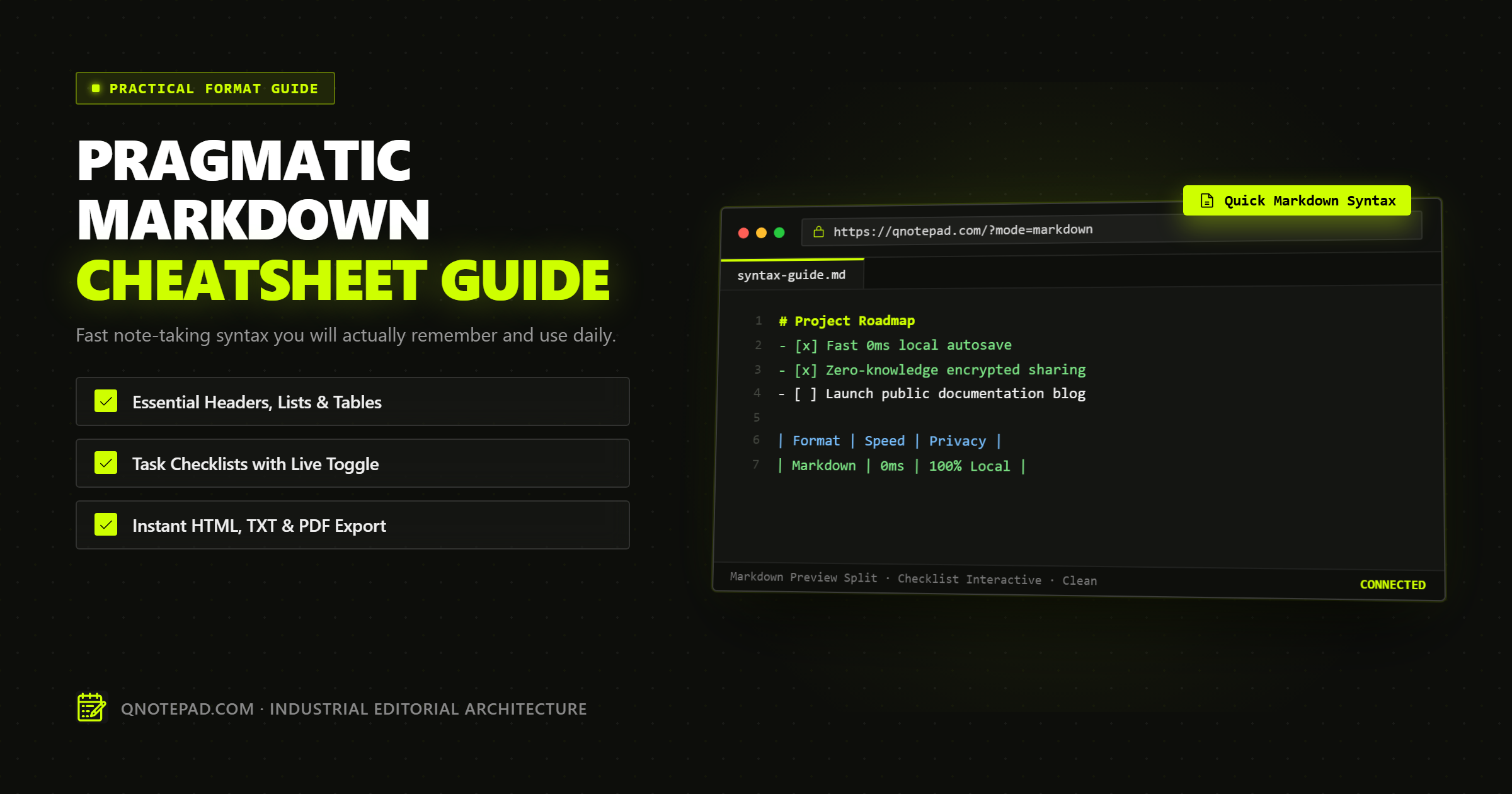
Markdown is the universal language of modern digital writing. From developer documentation and technical research to executive meeting summaries and daily to-do lists, Markdown provides structured, readable formatting without forcing you to lift your fingers from the keyboard.
However, many online Markdown cheat sheets overwhelm readers with obscure edge cases—like reference-style link footnotes, indented block fallback rules, or raw HTML embedding—that nobody uses during fast-paced note-taking.
This guide applies the 80/20 rule: the essential 20% of Markdown syntax that covers 80% of your everyday note-taking needs. Bookmark this page as your practical, distraction-free reference.
1. Document Hierarchy: Clean Headings
Headings create a semantic outline for your notes. Always place a single space between the # symbols and your heading text.
# Main Document Title (H1 - Use once per note)
## Major Section (H2 - Core topics)
### Subsection (H3 - Detailed sub-points)
#### Tactical Note (H4 - Minor operational items)
Best Practice for Speed: In daily notes, stick to ## for your main sections and ### for breakdown items. Reserve # for the primary title.
2. Text Emphasis & Inline Code
Format words inline to create visual scanning anchors:
**Bold text** for high-priority conclusions or key definitions
*Italic text* for subtle emphasis, quotes, or book titles
~~Strikethrough~~ for deprecated ideas or canceled tasks
`inline code` for commands, file names, API keys, and variable names
Visual Output:
- Bold text for high-priority conclusions or key definitions
- Italic text for subtle emphasis, quotes, or book titles
Strikethroughfor deprecated ideas or canceled tasksinline codefor commands, file names, API keys, and variable names
3. Lists and Interactive Task Checklists
Lists organize thoughts faster than narrative paragraphs. Modern Markdown editors (including QNotepad) support clickable task checkboxes.
### Standard Unordered List
- Top-level bullet point
  - Indented sub-bullet (indent with 2 spaces)
  - Another sub-bullet
- Back to main list level

### Numbered Sequential List
1. First discovery phase
2. Architecture design sprint
3. Production deployment check

### Interactive Task Checklists (GFM)
- [x] Completed milestone item (checked)
- [ ] Urgent pending task (clickable checkbox)
- [ ] Blocked dependency item
Efficiency Tip: In editors supporting live GFM checklists, you can click the checkbox directly in the preview or editor to toggle between [ ] and [x] without manually editing the text.
4. Markdown Tables Made Simple
Tables are ideal for benchmarks, comparison matrices, and feature breakdowns. You do not need to align the pipe characters perfectly—the Markdown renderer handles spacing automatically:
| Tool | Startup Time | Offline Mode | Privacy Model |
| :--- | :---: | :---: | :--- |
| QNotepad | 48ms | IndexedDB | Local-First / Zero-Knowledge |
| Cloud Notes | 1,800ms | Limited | Server Cleartext / KMS |
| Desktop Editor | 250ms | Local Disk | Device File Storage |
Alignment Syntax:
:---Left-aligned text (default for words):---:Center-aligned text (ideal for status tags or dates)---:Right-aligned text (ideal for numbers, currency, and metrics)
5. Fenced Code Blocks with Syntax Highlighting
When pasting configuration snippets, SQL queries, or scripts into your scratchpad, use triple backticks with a language identifier for clean syntax coloring:
```typescript
interface NoteDocument {
  id: string;
  title: string;
  content: string;
  updatedAt: number;
}
Supported language identifiers in modern lightweight editors:
- `ts` / `typescript` / `js` / `javascript`
- `json` (auto-formats with indentation)
- `sql` (database queries)
- `bash` / `sh` (terminal commands)
- `html` / `css` / `xml`
- `python` / `py`

---

## 6. Blockquotes & Important Callouts

Use the `>` character to highlight client feedback, quotations, or essential warnings:

```markdown
> Critical Rule: Never store unencrypted capability keys in server logs or analytics beacons.
Visual Output:
Critical Rule: Never store unencrypted capability keys in server logs or analytics beacons.
7. Links & Clean Image Embeds
[Link Text](https://qnotepad.com)

Speed Tip: If you just need a clickable raw URL in your notes without custom anchor text, wrap it in angle brackets:
<https://qnotepad.com>
Markdown Flavor Comparison: Which Standard Matters?
Not all Markdown parsers behave identically. Here is how the three dominant specifications compare:
| Feature | CommonMark | GitHub Flavored Markdown (GFM) | Legacy Markdown (2004) |
|---|---|---|---|
Interactive Task Lists (- [ ]) |
No | Yes | No |
| **Tables (` | col | col | `)** |
Strikethrough (~~text~~) |
No | Yes | No |
| Autolink URLs | Limited | Full support | No |
| Strict Ambiguity Spec | Yes (High precision) | Yes (CommonMark superset) | Loose (Varies by parser) |
Recommendation: Always write with GitHub Flavored Markdown (GFM) conventions. It is the de facto standard across GitHub, GitLab, modern documentation engines, and web note editors like QNotepad.
Essential Keyboard Shortcuts for Rapid Markdown
When taking notes in a browser-based Markdown editor, use standard keybindings instead of reaching for the mouse:
Ctrl + B/Cmd + B: Toggle Bold (**text**)Ctrl + I/Cmd + I: Toggle Italic (*text*)Ctrl + K/Cmd + K: Insert Markdown Link templateCtrl + Shift + M/Cmd + Shift + M: Toggle instant Live Markdown PreviewCtrl + Shift + D/Cmd + Shift + D: Insert current Date & TimestampTab/Shift + Tab: Indent and unindent list hierarchy
The Takeaway
You do not need to memorize hundreds of syntax variations to take world-class structured notes. With headings, bold emphasis, interactive checklists, simple tables, and fenced code blocks, you have 100% of the tools needed to capture, organize, and export high-clarity technical notes in seconds.
Practice Interactive Markdown in QNotepad →
No login, no cookies wall, no servers looking over your shoulder. Write locally with zero latency.