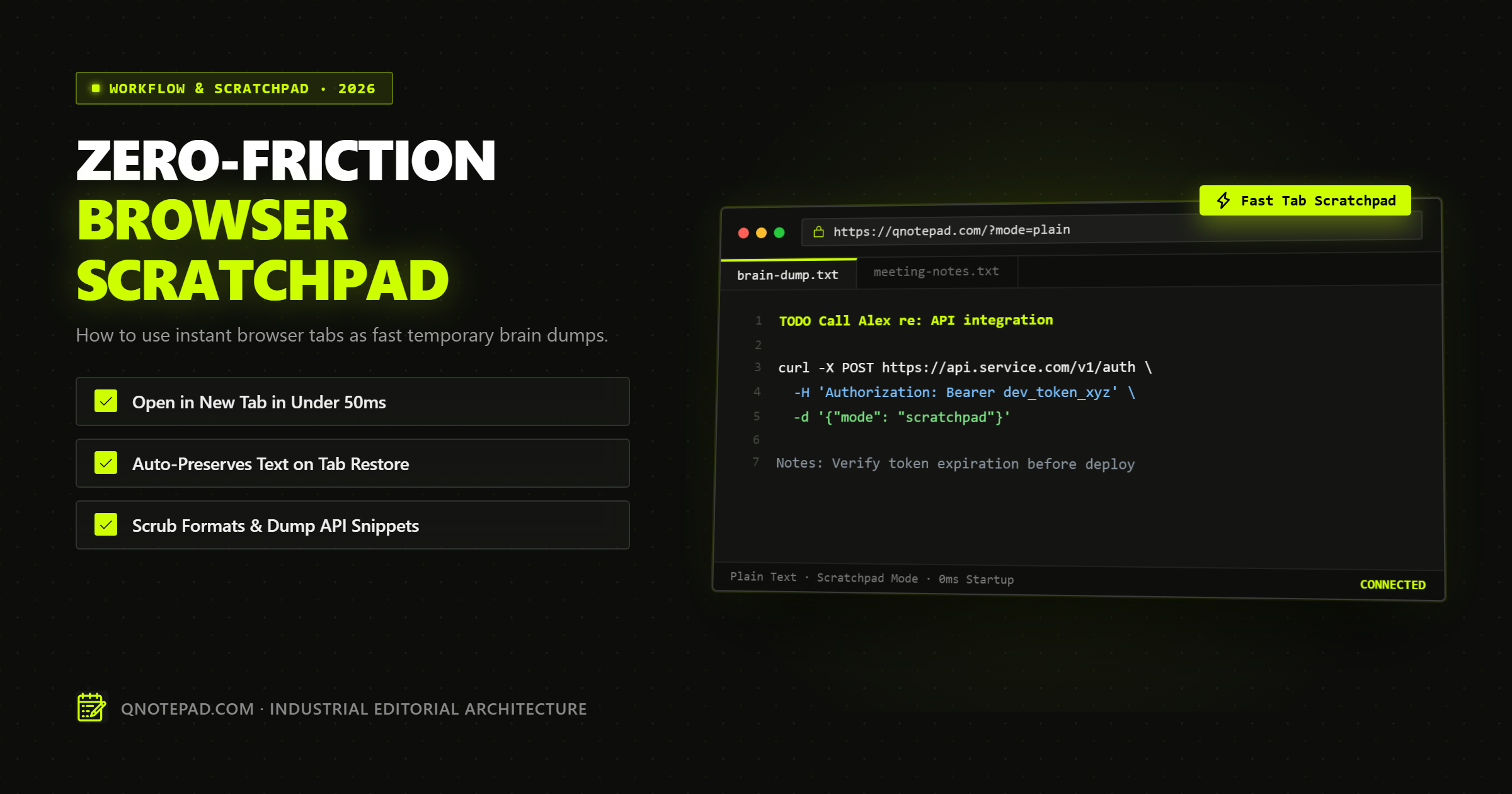
Most knowledge workers take dozens of ephemeral notes every single day. You need to temporarily hold a server curl command, scrub tracking parameters from a link, paste an unformatted snippet from Slack, or draft a sensitive email response before hitting send.
Yet, many users default to opening heavyweight workspace tools like Notion, Obsidian, Google Docs, or Apple Notes for these 30-second tasks. The result is cognitive friction, startup lag, and endless digital clutter.
A browser tab scratchpad solves this by turning the software you already have open all day—your web browser—into an immediate, zero-latency scratchboard. Here is the technical and practical breakdown of why this workflow outperforms dedicated note applications for short-lived data, and how to configure it for zero friction.
The High Cost of the "App Switch" Friction Tax
Psychological research into attention management shows that every digital context switch incurs an attention residue. When you leave your active browser window to open a native desktop note-taking application or launch a heavy cloud web app, three distinct friction points occur:
- Cold-Start Latency: Modern cloud workspaces bundle large client-side JavaScript runtimes. Loading a workspace dashboard often takes between 1.5 to 3.5 seconds before an empty document appears.
- Organizational Paralysis: Tools built around structured databases force you to make unnecessary decisions before typing: Which folder does this belong in? Should I create a page or a sub-database? What title should I give this?
- Accumulated Workspace Rot: Ephemeral text (a phone number, a tracking token, a code diff) gets permanently stored in your main knowledge base, polluting search results for months afterward.
A dedicated browser scratchpad eliminates all three barriers. You press a single keystroke to open a tab, type immediately, and close the tab when finished—with zero organizational overhead.
Comparison: Dedicated Apps vs Browser Tab Scratchpad
| Evaluation Metric | Heavy Cloud App (Notion / Docs) | Native OS App (Notes / TextEdit) | Browser Tab Scratchpad (QNotepad) |
|---|---|---|---|
| Startup to Typing Time | 1,500ms - 3,500ms | 300ms - 800ms | Under 50ms |
| Context Switching | High (New window & workspace) | Medium (App switch shortcut) | Zero (Native browser tab) |
| Account / Sign-In | Mandatory OAuth / Email | OS Account Sync | None required |
| Clipboard Scrubbing | Retains unwanted rich formatting | Manual "Paste and Match Style" | Native plain text or toggle |
| Crash & Reopen Survival | Cloud sync dependent | Local file prompt | Automatic IndexedDB session cache |
| Workspace Pollution | Creates permanent orphaned pages | Fills Desktop / Documents folder | Isolated, ephemeral or auto-cleared |
The Four Non-Negotiable Traits of an Effective Scratchpad
Not all web notepads make effective scratchpads. To genuinely enhance your workflow without introducing frustration, a browser scratchpad must satisfy four technical criteria:
1. Synchronous Cursor Focus (Zero-Click Input)
When the tab opens, focus must be programmatically placed inside the text editor in the very first render cycle. If you have to reach for your mouse and click inside the text box, the zero-friction promise is broken.
2. Aggressive Format Scrubbing
When copying formatted text from PDFs, spreadsheets, or communication apps, clipboards carry invisible styling: nested spans, custom font families, background highlights, and non-breaking spaces. A true scratchpad strips these artifacts cleanly, allowing you to sanitize text before pasting it into production environments.
3. Asynchronous Local Persistence Without Server Calls
Temporary does not mean volatile. If your laptop battery dies, your browser crashes, or an accidental keyboard shortcut closes your tab, your scratchpad must not lose your uncommitted thoughts. By persisting data to browser-managed IndexedDB in the background, your work survives browser restarts completely offline.
4. Zero Data Exfiltration
Because scratchpads frequently hold raw data—database connection strings, draft legal wording, customer email replies, or credentials—the editor must be strictly local-first. No tracking scripts, analytics beacons, or remote keystroke collectors should ever inspect your scratchpad buffer.
Step-by-Step: Setting Up a 0ms Scratchpad Workflow
Here is how power users configure an instant scratchpad in modern browsers (Chrome, Brave, Firefox, Safari, Edge):
Step 1: Assign a 1-Letter Search Keyword Shortcut
Instead of bookmarking and clicking, assign a custom search engine keyword in your browser:
- Chrome / Brave / Edge: Navigate to
Settings->Search engine->Manage search engines and site search. - Under Site search, click Add.
- Set Name to
QNotepad Scratchpad. - Set Shortcut to
qornp. - Set URL to
https://qnotepad.com/?mode=plain.
Now, whenever you need to dump text, press Ctrl + T (or Cmd + T), type q, and hit Enter. In under 50 milliseconds, your cursor is ready to write.
Step 2: Use Keyboard Shortcuts for Formatting Toggles
If your scratchpad needs structured readability (such as during a meeting or code debug session), use native keybindings rather than visual toolbars:
Ctrl + Shift + M(orCmd + Shift + M): Instant switch between Plain Text (for raw format scrubbing) and Markdown (for headings and checklists).Ctrl + S/Cmd + S: Export your scratchpad note directly to a local.txtor.mdfile without leaving the browser.
Step 3: Closing Without Cleanup Guilt
Because QNotepad maintains your active note in client-side IndexedDB, you do not need to manually save or discard files when you are done. If you close the tab, your text remains preserved when you return. When you are ready for a clean slate, a single click on New Note clears the buffer instantly.
Summary Checklist for Maximum Daily Efficiency
- Stop opening full-featured document apps for notes that have a lifespan of under 24 hours.
- Keep your scratchpad within your primary browser tab ecosystem to minimize attention switching.
- Use plain text mode to sanitize clipboard contents before transferring text to external applications.
- Verify that your online tool stores data locally and never transmits your temporary notes to remote servers.
Launch Instant Plain Text Scratchpad Now →
No login, no cookies wall, no servers looking over your shoulder. Write locally with zero latency.