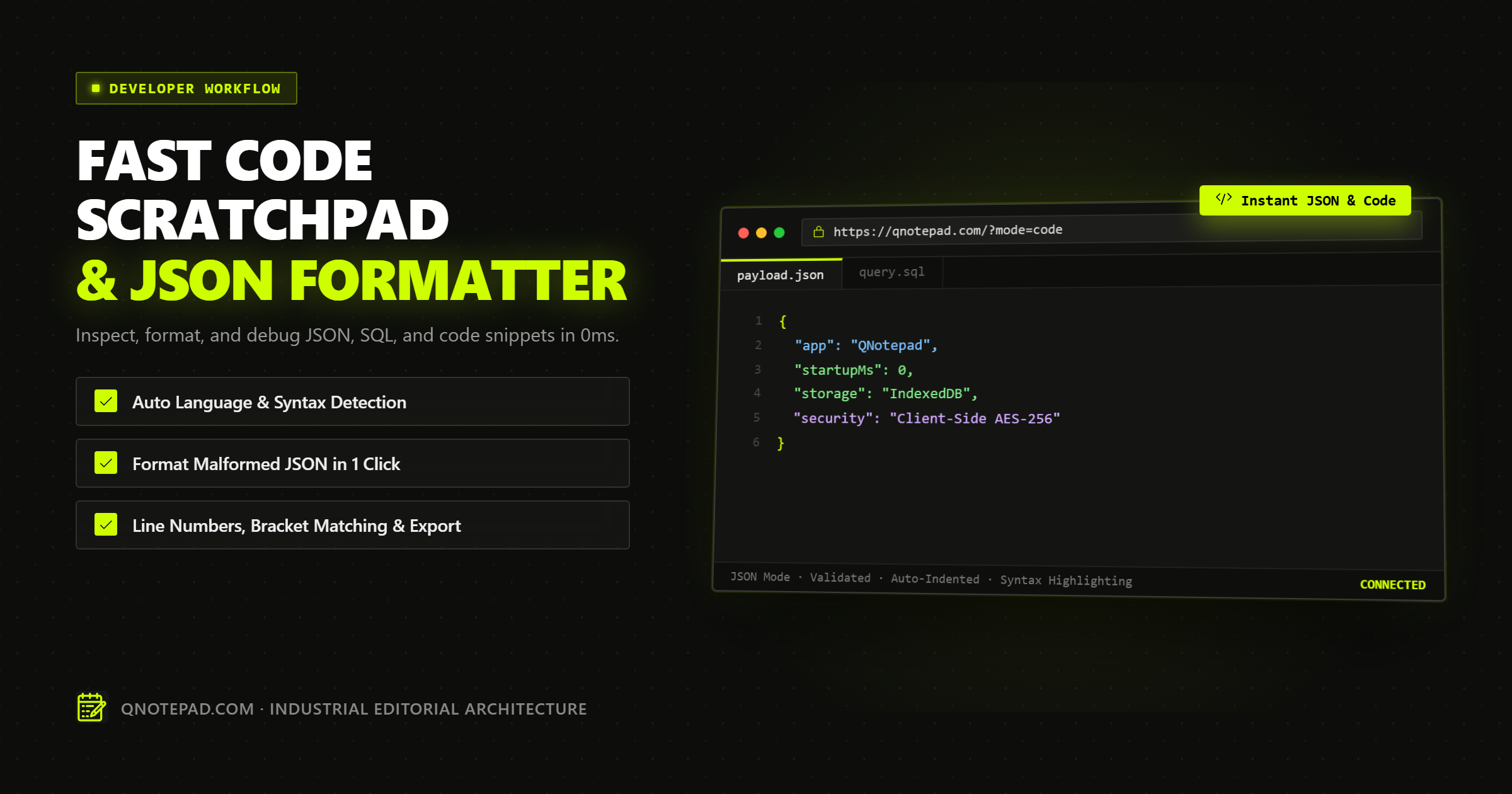
Software engineering involves hundreds of small, transactional data interactions every week. You trigger a webhook and need to inspect the raw response payload. You copy an AWS CloudWatch log entry with escaped JSON strings. You tweak a complex SQL query draft before running it against a database console.
For these 15-second tasks, developers face an annoying dilemma:
- Option A: Launch a full desktop IDE (VS Code, IntelliJ, WebStorm). This consumes hundreds of megabytes of RAM, takes 5 to 10 seconds to load, and leaves you with an endless graveyard of abandoned
Untitled-1.jsonandtemp.sqlfiles polluting your workspace. - Option B: Search for "free json formatter online" on Google and paste your data into the first ad-monetized web utility that appears.
Option B is especially dangerous. Many online formatters run dozens of third-party analytics trackers, session replay scripts (like Hotjar or Clarity), and programmatic ad exchanges. Pasting production JSON payloads containing customer PII, session tokens, or internal database schemas into unvetted websites represents a major security and compliance violation.
A local-first web code scratchpad gives you the best of both worlds: instant 0ms startup inside your existing browser session, paired with 100% offline, client-side data isolation. Here is how to master this workflow.
Comparison: Developer Text Scratchpads Evaluated
| Tool Category | Startup Speed | Security / Data Privacy | RAM Footprint | Auto-Preserves Edits? | Ads & Analytics Trackers |
|---|---|---|---|---|---|
| Heavy Desktop IDE (VS Code / JetBrains) | 3,000ms - 8,000ms | High (Local machine) | 400MB - 1,500MB | Prompts on close | Zero |
| Ad-Supported Online Formatter | 800ms - 2,000ms | Extremely Dangerous (Cloud analytics & logs) | 80MB - 200MB | Usually lost on refresh | Heavy ad banners & trackers |
| Native OS Text Editor (Notepad / TextEdit) | 100ms - 300ms | High (Local machine) | 15MB - 40MB | Prompts to save | Zero |
| Local-First Web Scratchpad (QNotepad) | Under 50ms | Guaranteed (100% Client-side sandbox) | Under 30MB | Automatic IndexedDB session cache | Zero ads, zero trackers |
The Security Trap of Public "Free" Online Formatters
When you paste code or JSON into a generic online formatting website, what actually happens behind the scenes?
1. Telemetry and Analytics Ingestion
Most ad-supported web utilities utilize analytics packages to measure user interaction. Many of these tools automatically capture DOM elements or log HTTP form submissions. If an error occurs during parsing, some sites send the malformed payload back to their server-side error logging systems (such as Sentry or Datadog), exposing your raw data to their engineering teams.
2. Browser Extension Interception
Ad-heavy sites frequently embed third-party advertising iframes and script tags from unvetted ad networks. These scripts have direct access to the webpage's DOM, allowing them to inspect the value of input textareas and clipboard pastes.
3. Corporate Compliance Breaches (GDPR, SOC 2, HIPAA)
Under modern data privacy regulations, transmitting unencrypted customer records or personal identifiable information (PII) to an unauthorized third-party processor is an immediate regulatory breach. Using client-side tools that never transmit data over the network keeps your team strictly compliant.
Anatomy of a Professional Code Scratchpad
A developer-grade scratchpad must offer features tailored specifically to code inspection without the bloat of a full IDE:
1. Instant Syntax Coloring Without Setup
The editor should instantly recognize common data interchange and programming formats (JSON, TypeScript, JavaScript, SQL, HTML, Python, YAML) and apply clean, legible syntax highlighting without requiring language server installations.
2. Client-Side Parsing and Indentation
Formatting must occur entirely within the browser's JavaScript V8/SpiderMonkey engine. A single shortcut should transform minified, unreadable single-line payloads into cleanly indented 2-space or 4-space hierarchical structures.
3. Bracket and Parenthesis Matching
Navigating nested JSON objects with dozens of levels of hierarchy requires visual bracket matching and line numbering, allowing you to instantly pinpoint where an object or array terminates.
4. Background Persistence Across Tab Closes
If your laptop runs out of battery or you accidentally close your browser tab, your drafted query or modified payload must remain intact in IndexedDB when you reopen the page.
Practical Guide: Fixing Real-World "Dirty" JSON
In production systems, you rarely receive perfectly valid JSON. Here are the four most common formatting headaches developers encounter, and how to resolve them rapidly:
Problem 1: Unquoted Object Keys
Many JavaScript consoles and Node.js logs output object literals rather than strict JSON, leaving keys unquoted:
// Raw input (Invalid JSON):
{
  status: "success",
  userId: 10492,
  tier: "premium"
}
Fast Solution: In a code scratchpad with regex support, run a quick find-and-replace:
- Search:
([{,]s*)([a-zA-Z0-9_]+)s*: - Replace:
$1"$2":
Problem 2: Trailing Commas
Strict JSON specification (ECMA-404) forbids trailing commas after the last element in arrays or objects. Linters and databases will reject payloads containing them:
// Invalid JSON with trailing comma:
{
  "hosts": [
    "api-1.internal",
    "api-2.internal",
  ]
}
Fast Solution: Modern scratchpads automatically strip trailing commas prior to parsing:
- Search:
,(s*[}]]) - Replace:
$1
Problem 3: Stringified Escaped JSON (The "JSON inside JSON" Nightmare)
When working with messaging queues (AWS SQS, Google Pub/Sub, Kafka), payloads are frequently serialized twice, resulting in deeply escaped strings:
"{"event":"user_signup","metadata":"{\"source\":\"organic\"}"}"
Fast Solution (Browser DevTools Console Recipe): If your scratchpad includes a scratch console, you can unwrap nested stringified payloads in one line:
const unwrap = (str) => {
  let parsed = typeof str === 'string' ? JSON.parse(str) : str;
  while (typeof parsed === 'string') {
    try { parsed = JSON.parse(parsed); } catch { break; }
  }
  return JSON.stringify(parsed, null, 2);
};
Problem 4: BigInt Precision Loss
Standard JavaScript JSON.parse() converts all numbers to 64-bit IEEE 754 floating-point numbers. Any integer larger than Number.MAX_SAFE_INTEGER (9,007,199,254,740,991, such as Twitter snowflake IDs or 64-bit database primary keys) will lose precision silently:
// Original ID: 1592837492817264812
JSON.parse('{"id": 1592837492817264812}').id;
// Output:      1592837492817264900  <-- Corrupted!
Safety Rule: Always verify that high-precision identifiers are stored as quoted strings ("id": "1592837492817264812") before formatting.
Technical Comparison: JSON vs JSON5 vs YAML for Modern Configs
When drafting configuration files in a code scratchpad, choosing the right format impacts developer velocity and parsing reliability:
| Format Specification | Human Readability | Comments Allowed? | Trailing Commas Allowed? | Machine Parsing Speed | Native Browser Support |
|---|---|---|---|---|---|
| Strict JSON (ECMA-404) | Moderate (Strict quoting) | No | No | Instant (Native C++ V8 Engine) | 100% Native |
| JSON5 | High (Unquoted keys, multiline) | Yes (// and / /) | Yes | Fast (Requires JS Parser) | Third-party library |
| YAML 1.2 | High (Indentation-based) | Yes (# comments) | N/A (List syntax) | Slower (Complex regex AST) | Third-party library |
| TOML | High for flat key-value pairs | Yes (# comments) | N/A (Table syntax) | Moderate | Third-party library |
Key Takeaway: For network payloads, API responses, and database interchange, stick strictly to standard JSON. For human-edited local scratchpads and developer notes, tools supporting JSON5 or YAML allow you to add inline comments and annotate debugging thoughts without breaking parsers.
Developer Recipe: Instant TypeScript Interface Generation
One of the most frequent tasks when working with external API payloads is converting raw JSON into typed TypeScript interfaces. Instead of manually writing interfaces property by property, you can infer them directly from a sample payload:
// Sample API response in your scratchpad:
const samplePayload = {
  id: "usr_99182",
  email: "developer@example.com",
  roles: ["admin", "billing"],
  settings: {
    twoFactorEnabled: true,
    sessionTimeoutSeconds: 3600
  }
};

// Inferred TypeScript structure:
interface UserProfile {
  id: string;
  email: string;
  roles: string[];
  settings: {
    twoFactorEnabled: boolean;
    sessionTimeoutSeconds: number;
  };
}
Using QNotepad's Code Mode, you can paste any valid JSON payload, inspect the object keys with line numbers, and immediately generate corresponding TypeScript definitions for your frontend or backend codebase.
4 Common Pitfalls When Using Web Developer Scratchpads
1. Pasting Huge 100MB+ JSON Payloads into DOM Textareas
Standard browser DOM nodes will choke and cause tab freezes when attempting to syntax-highlight massive JSON files (such as database dumps exceeding 50 megabytes).
- Remedy: For multi-gigabyte log files, use command-line streaming tools like
jqorfx. Reserve browser scratchpads for payloads under 10 megabytes.
2. Auto-Fill Extensions Corrupting Code
Password managers and browser autofill extensions often attempt to detect forms on web pages. If an autofill extension mistakenly injects a saved username or credit card into your active code scratchpad, it can invalidate your payload syntax.
- Remedy: Use editors that utilize custom content-editable canvas/DOM abstractions (like CodeMirror 6) rather than primitive
<textarea>elements, preventing browser autofill extensions from interfering.
3. Relying on Volatile Memory Scratchpads
Many developers open a new browser tab and type into the URL bar or an unsaved browser window. A single accidental browser shortcut (Ctrl + W or Cmd + R) permanently destroys the text.
- Remedy: Use tools that continuously commit keystrokes to client-side IndexedDB in the background.
4. Leaving Sensitive Production Configs Open on Unattended Laptops
Because browser tabs stay open indefinitely, leaving production secrets or private user data visible on your screen creates a physical shoulder-surfing risk in co-working spaces or offices.
- Remedy: Use the scratchpad's instant Clear Note button or close the tab as soon as your debugging session concludes.
Frequently Asked Technical Questions (FAQ)
Can I use QNotepad's code scratchpad completely offline?
Yes. Once loaded in your browser, the application assets are cached via modern Service Workers. You can disconnect your Wi-Fi, board an airplane, and format JSON or write code without an internet connection.
Is my code or JSON ever sent to your servers?
No. In QNotepad's Code Mode, all parsing, syntax detection, highlighting, and formatting execute strictly inside your local browser JavaScript engine. Zero network requests are initiated during editing.
How do I quickly format malformed or minified JSON?
Press Ctrl + Shift + F (or click the format action) inside the editor. The client-side parser validates the syntax, cleans invalid spacing, and reformats the structure with consistent 2-space indentation.
What languages are supported in the code editor?
QNotepad's modular editor core supports JavaScript, TypeScript, JSON, SQL, HTML, CSS, Markdown, Python, and raw plain text with automatic language detection based on pasted content.
The Verdict: Keep Your Workspace Lean
You do not need to open a heavy desktop IDE just to inspect a JSON object, and you should never surrender sensitive corporate data to ad-supported online formatters.
Bookmark QNotepad's Code Scratchpad to format JSON, debug queries, and manipulate code in 0ms with complete local privacy.
Open 0ms Code Scratchpad in QNotepad →
No login, no cookies wall, no servers looking over your shoulder. Write locally with zero latency.